Owlect
All articles

Import & Sync

Import items from spreadsheets or sync from BoardGameGeek and Discogs.

Importing items

If you already have a list of your collection in a spreadsheet (like Excel or Google Sheets), you can import it into Owlect instead of typing each item one by one.

CSV Import

CSV is a simple file format that most spreadsheet apps can export to.

How to import from CSV:
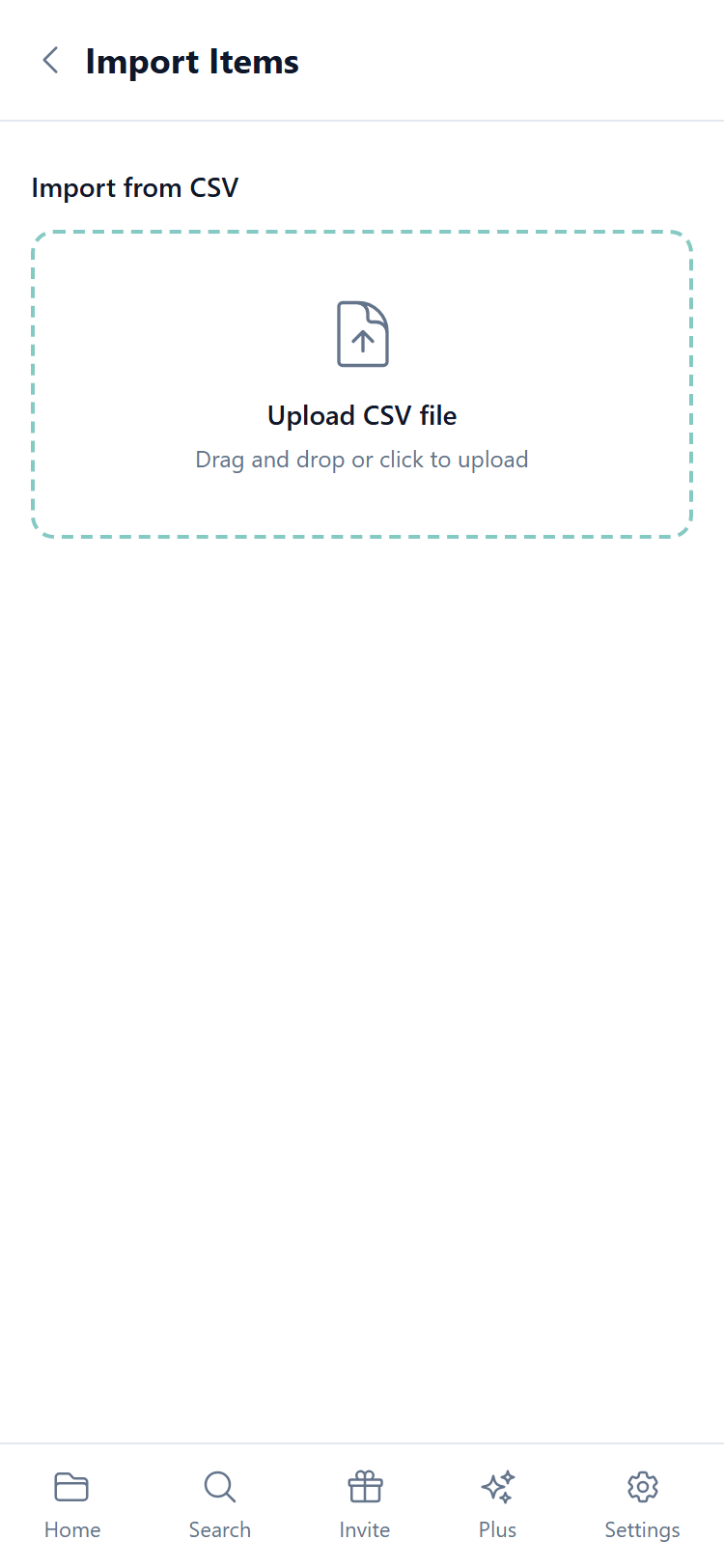
  • 1Open your collection
  • 2Go to the **Import** page
  • 3Upload your CSV file
  • 4Owlect reads your file and shows a preview
  • 5Match your columns to the right fields (Owlect tries to do this automatically)
  • 6Tap **"Import"**
  • CSV import
    Owlect understands files separated by commas, tabs, or semicolons — you do not need to worry about the format.

    BoardGameGeek Sync

    If you track your board games on BoardGameGeek (BGG), you can sync your whole collection into Owlect:

  • 1Create a **Board Games** collection
  • 2Go to the **Import** page
  • 3Enter your BGG username
  • 4Tap **"Sync"**
  • 5Owlect downloads your games with all the details — name, year, player count, play time, and images
  • Discogs Sync

    If you use Discogs for your vinyl record collection:

  • 1Create a **Vinyl Records** collection
  • 2Go to the **Import** page
  • 3Tap **"Connect Discogs"**
  • 4Sign in to your Discogs account and allow access
  • 5Owlect imports all your records with artist, album, genre, label, and cover images
  • When to use import vs. adding one by one

  • Importis great when you already have a big list or use another service
  • Adding one by oneis better for keeping your collection up to date as you get new items
  • We use cookies for site functionality, traffic analysis, and personalization. We may share cookie data with marketing partners. Learn more